Author: G.W.Jarvis

  • Godot OpenXR Quick Start Guide

    Godot OpenXR Quick Start Guide

    This guide goes over setting up a very simple XR/VR project in Godot 4.  It includes configuring the settings and nodes required for XR scenes.  It does not cover topics like locomotion, hand configuration, or grabbing objects.  

    The basic requirements for running an XR project are:

    • Enabling XR in the Project Settings
    • Adding the XR nodes: XROrigin3D, XRCamera3D, and XrController3D
    • Adding an XR script to initialize XR on launch

    Watch the YouTube video tutorial here.

    XR Project Settings

    To get started, create a project, and in the Project Settings under the XR menu enable both OpenXR and Shaders by checking the Enabled box in each section.  
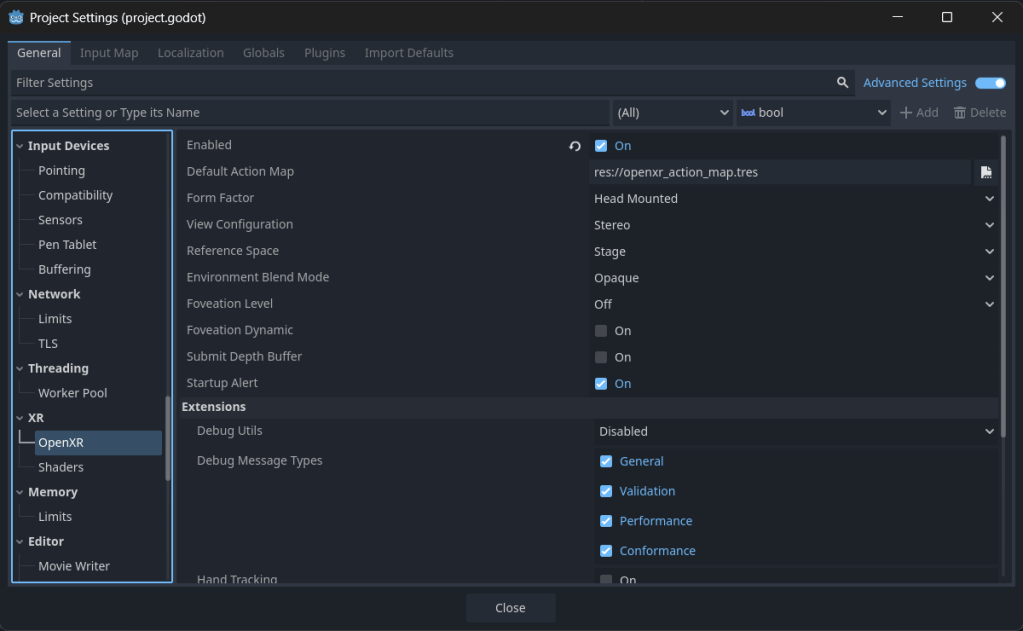
    Close the project and then reopen it after enabling these settings.  Now you are ready to add the OpenXR nodes that allow for initializing and tracking VR equipment like headsets and controllers. 

    XR Nodes

    There are three nodes that comprise the basic VR setup:

    • XROrigin3D
    • XRCamera3D
    • XRController3D (one for each controller)

    For now these can be added to a scene like a Node3D or CharacterBody3D, as we will not be configuring locomotion and do not need physics.  

    Add the XROrigin3D node to whichever scene you’ve created, and then nested within the XROrigin3D node add the XRCamera3D and two XRController3D nodes.  
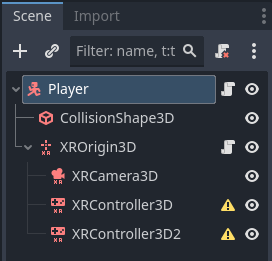
    It is helpful to rename the XRController3D nodes “right” and “left” as you will need to define the Tracker property on each controller in order to enable motion tracking.  
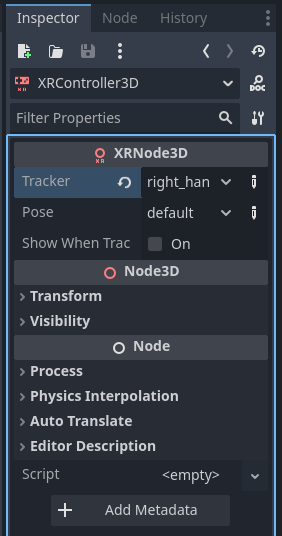
    For your right controller select “right_hand” and for your left controller select “left_hand”.  Your scene should now look something like this, with no warnings or exclamations:
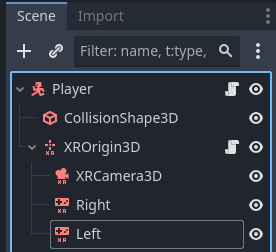
    You are now ready to add the XR script.  

    XR Script

    Once you have added the XR nodes and defined the left and right tracking on the controllers, you need to add a script to your scene that tells Godot to initialize OpenXR.  It makes sense to copy this script into the scene containing the OpenXR nodes:

    var xr_interface: XRInterface

    func _ready():

    xr_interface = XRServer.find_interface(“OpenXR”)

    if xr_interface and xr_interface.is_initialized():

    print(“OpenXR initialized successfully”)

    # Turn off v-sync!

    DisplayServer.window_set_vsync_mode(DisplayServer.VSYNC_DISABLED)

    # Change our main viewport to output to the HMD

    get_viewport().use_xr = true

    else:

    print(“OpenXR not initialized, please check if your headset is connected”)
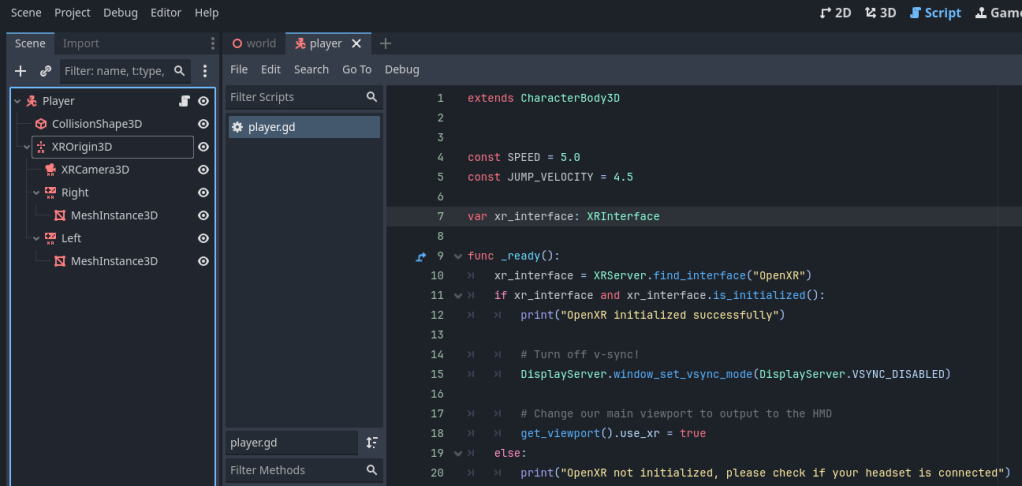
    Once you have the script added, you are ready to launch the scene.  It is helpful to create a simple world scene with lighting and a floor so that you are able to look around to make sure the headset is tracking properly.  Adding mesh instances (small spheres will work) to the controllers will also help you make sure that the right and left hands are tracking properly.  
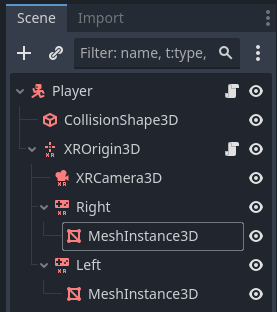
    Adjust the size and transform of the meshes as needed so that they match where your hands should be.  You won’t be able to do anything with them, but it is just a useful reference to explore using the controllers.  

    Conclusion

    You should now have a headset that is displaying properly, as well as controllers that are tracking.  Again these are the absolute basics of running Godot XR, there is likely much more you wish to do.  I encourage you to explore what has been set up here, as well as other resources.  

    Take a look at our guide for configuring button input on your VR controllers here.  

    Also get more explanation and details from the Godot XR documentation here.  
  • Quick Start Godot OpenXR Buttons and Inputs for VR Controllers

    Quick Start Godot OpenXR Buttons and Inputs for VR Controllers

    Mapping buttons on VR controllers in Godot is different from the usual input mapping used for mouse/keyboard or other controllers.  The key differences are the entirely separate section for button mapping called the OpenXR Action Map, and the manner of connecting these inputs to scenes and functions using signals.  

    A YouTube video guide is also available here.

    The basic process for creating button inputs in Godot OpenXR is the following:

    • Create an Action Set (or use the defaults)
    • Verify that controllers have the correct names from the Action Set applied to the specific buttons. 
    • Emit a signal to check when a button is pressed on the controller
    • Check which button is pressed and execute functions as instructed.  

    OpenXR Action Map

    Make sure you have a working OpenXR environment setup (Godot documentation link here) and once you do, notice the new menu called OpenXR Action Map on the bottom of the Godot interface near the Output/Debugger/etc. 

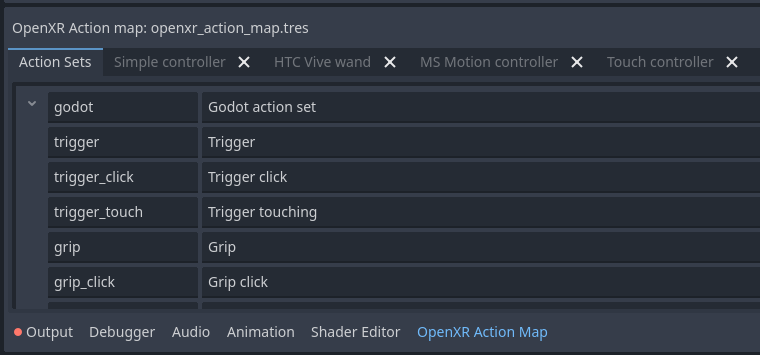
    In this menu you will see Action Sets, which is how you can name certain actions you can take like pressing a button or trigger.  There is also a list of controllers which is where you will map the action name to a certain button.  Make note that the Action Sets simply gives names to the actions and the Controller tabs map that action name to a specific button on the controller, neither are directly connected to a scene or function yet.  This tutorial simply uses the default names and controller configurations, so this mapping should already be set up.  You can start making your own names and manually mapping them to controllers at a later point or as needed.  

    Signals

    Once the actions are mapped, now you will need to create signals for them so that they can actually be used and accessed from other scenes or functions.  

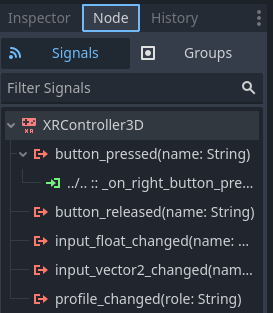
    Make sure you select the controller node (right or left) that you want to program, and navigate to its Signal tab.  You should see a button_pressed signal which you can double click to activate.  

    Connect this signal to any scene you want to access this button, it does not have to be attached to the OpenXR server or controller node.  You should now see the signal function in whatever script you connected it to:

    Checking for Input

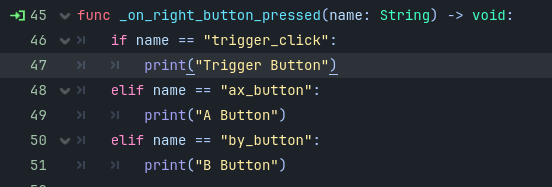
    Now that you have a signal created, you need to check which button is being pressed and apply whatever functions it should execute.  This function takes a name String as an input, which is how you will check to see what button is pressed.  

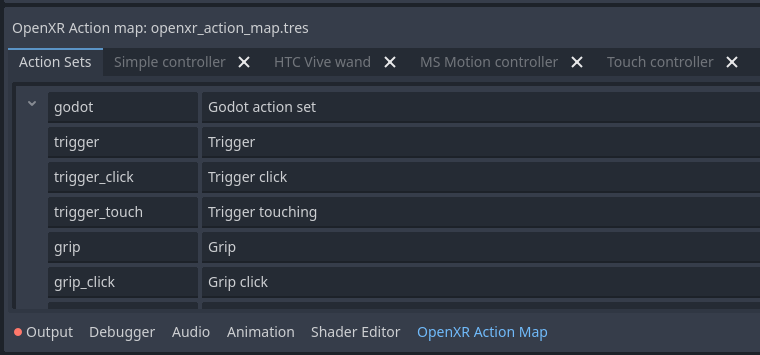
    To do that you will use an if statement in the body of the function to see if the name input matches the name defined in the Action Set.  

    Make note that the name must match the string in the first column of the Action Set.

    As we see again, this button_pressed function now checks to see if the trigger_click on the right controller is being pressed, and if so it prints an output.  

    These signals can be called in other scripts, or have multiple checks like below:

    Conclusion

    There are other ways to map buttons for OpenXR, as well as many more options and customizations, but this is a very simple and easy way to get buttons working in Godot OpenXR.  Be sure to read the Godot OpenXR documentation for additional information.